MISUMI's New eCatalog Creating a seamless online experience.WHAT'S NEW?
1. How to use?
As we have refreshed the layout and design of the MISUMI eCatalog (website), you may like to check out our updated "How to use" guide page to introduce you to the new MISUMI website in more detail.
2. Easy Search
In the new MISUMI eCatalog, you can now search for products easily by a) Category, b) Keyword or c) Part Number.
a) By Category
Find the product you need by first looking in the relevant categories listed in the top left panel.
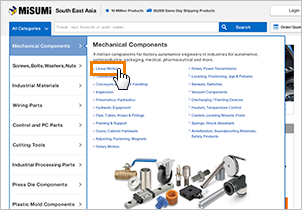
b) By Keyword, By Part Number
Enter a keyword or part number in the "Search bar header" at the top of the page and a suggested list of keywords/part numbers will be shown for your review/selection.
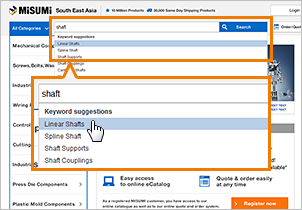 By Keyword
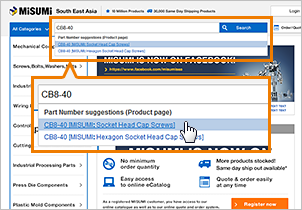 By Part Number
3. Filter by Specifications
The new eCatalog can help you narrow down search results to better focus on your needs. During your search process, you can select your required specifications and dimensions (e.g. shapes/materials/size, etc.) in the panel on the left on your selected product category page.
![[Image]3. Filter by Specifications](/pr/newchanges201602/images/pic_filter_01.png)
Besides viewing the searched product/s in a normal "List" format, you can also select "Photo" format to see the product picture highlights, or click on "Spec comparison" to view a product comparison table for your easy reference.
![[Image]3. Filter by Specifications](/pr/newchanges201602/images/pic_filter_02.png)
![[Image]3. Filter by Specifications](/pr/newchanges201602/images/pic_filter_03.png)
4. My Page
Using "My Page" can help you to better manage your overall purchasing experience with MISUMI.
- - View history (e.g. CAD download history)
- - Access and manage "My Components", a function that allows you to save product information, such as part numbers, create folders and manage your saved information folder by folder.
- - Manage your user profile.
![[Image]4. My Page](/pr/newchanges201602/images/pic_mypage.png)
